 simba
simbaWhat is Secure Boot and TPM? – A guide for CS2
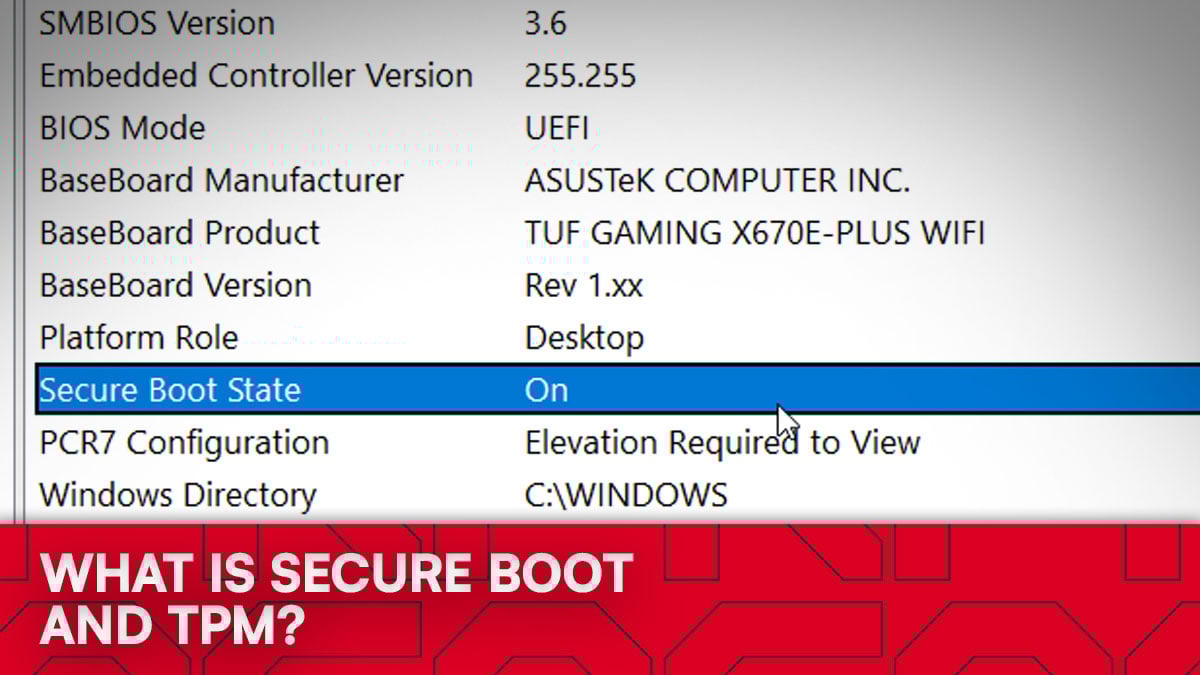
If you’ve tried launching Counter-Strike 2 on FACEIT lately and got hit with a “Please enable Secure Boot and TPM 2.0” message, you’re not alone. FACEIT is tightening its anti-cheat system to make cheating much harder at a hardware level, and that means players now need to have certain security features turned on. These settings, namely “Secure Boot”, are a part of a Windows 11 PC, and most modern hardware will support it. Enabling it can be done in a few simple steps, which this guide will cover.
What is Secure Boot?
Secure Boot is a setting found within your PC’s firmware that verifies digital signatures of all software that loads when your PC starts up. Its main purpose is to ensure that only trusted, signed code can be run by authorized vendors. If an unsigned or modified piece of software tries to run during boot, like one injected by malware or a perhaps a cheat, Secure Boot will prevent it from loading.
FACEIT and other anti-cheat systems require Secure Boot as another line of defense against cheating, though it’s not a catch-all solution.
What is TPM 2.0?
TPM stands for Trusted Platform Module, and its another small security feature that’s built into modern CPUs and motherboards. It’s used for storing sensitive data like encryption keys, and is required for certain kinds of software.
In the case of anti-cheat software, TPM combines with Secure Boot for system integrity verification, ensuring your PC and its components haven’t been tampered with.
Why you now need them for FACEIT (and other games)
FACEIT has always had one of the toughest anti-cheat systems in gaming, and now it’s adding hardware-level checks to block cheats that regular software can’t catch.
Cheats have evolved: some run before Windows even starts, and some even disguise themselves as system drivers. In theory, Secure Boot and TPM can be effective in stopping those methods entirely by proving your system booted clean and hasn’t been tampered with. It’s worth nothing that these settings are completely safe to turn on, and will come enabled by default on most pre-built computers.
Starting November 25, 2025, Secure Boot and TPM 2.0 will be mandatory to play on FACEIT. Then, in October 2026, Windows 11 will become the minimum supported operating system.
How to enable Secure Boot
FACEIT’s blog post regarding this states that around 95% of users already have Secure Boot enabled, but if you found yourself in the 5%, or are receiving errors, here’s what you need to enable Secure Boot:
Here’s how to get Secure Boot and TPM up and running:
Check if you already have it on:
- Press Start → type “System Information” → hit Enter.
- Look for Secure Boot State: On/Off
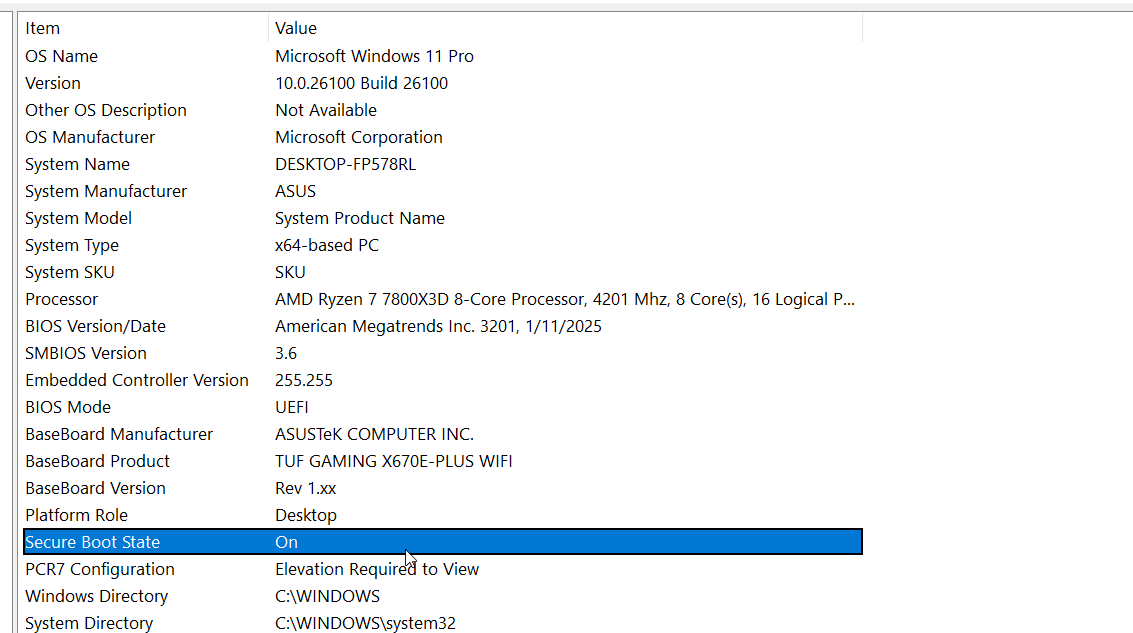
- Look for BIOS Mode: UEFI (if it says Legacy, you’ll need to change that later).
- Press Win + R, type tpm.msc, and check the window:
- Under “Specification Version,” it should say 2.0.
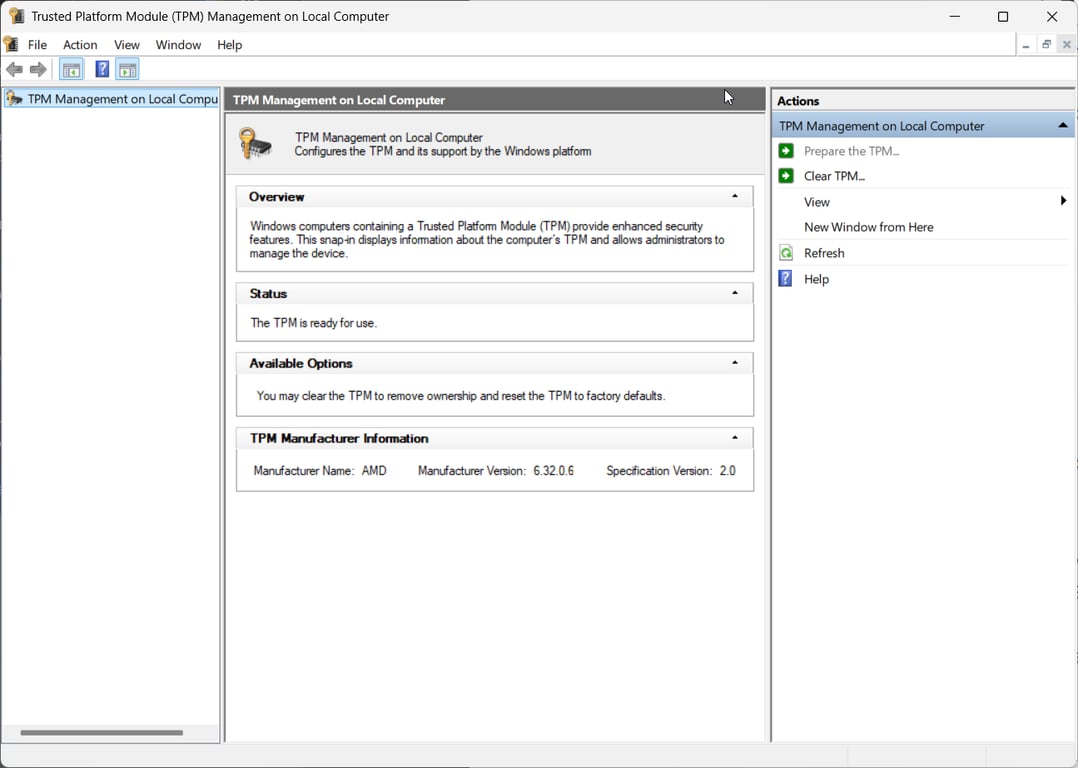
If both are on, you’re done! If not, you’ll need to access your BIOS. This can be done by rebooting your PC and repeatedly pressing Del, F2, or F12 as the computer is booting.
Look for tabs called Security, Boot, or Advanced, every brand calls it something a little different. Some BIOS versions support a search function, so you can also look for it there.
To enable TPM if it’s disabled, do the following:
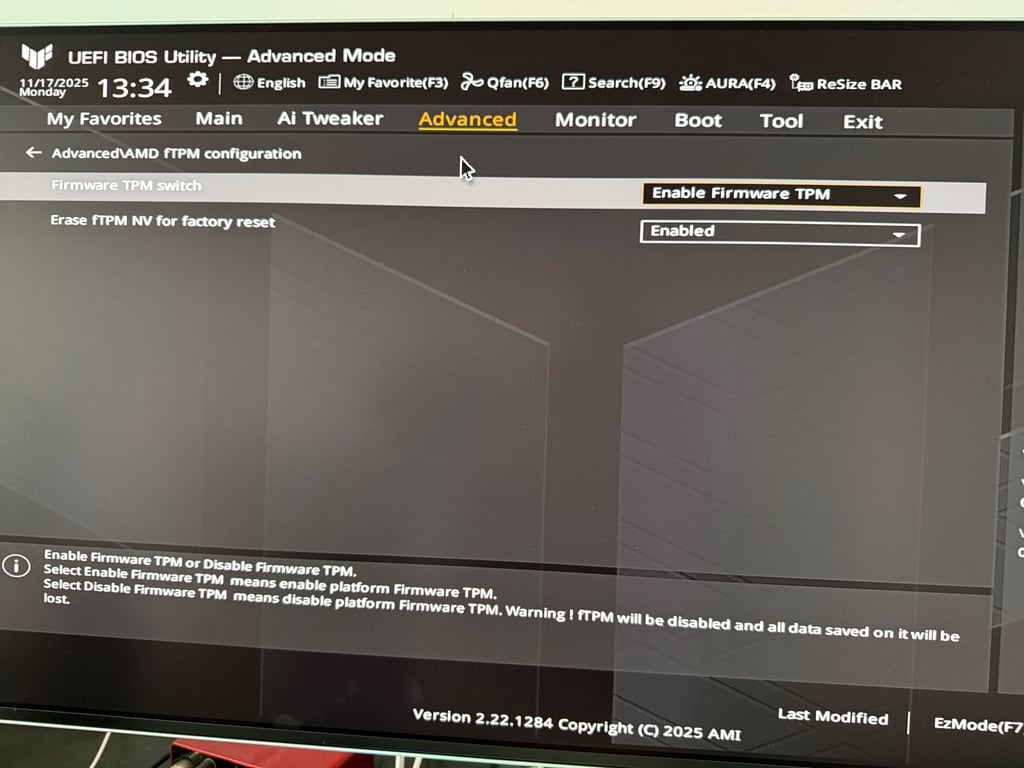
- For Intel: look for “PTT” or “Intel Platform Trust Technology” → Enable.
- For AMD: look for “fTPM” or “AMD CPU fTPM” → Enable
Save and reboot to confirm it’s active by running tpm.msc again.
To enable Secure Boot: if it’s disabled, do the following:
Back in the BIOS, find the Secure Boot option (usually under Boot or Security), and set it to Enabled.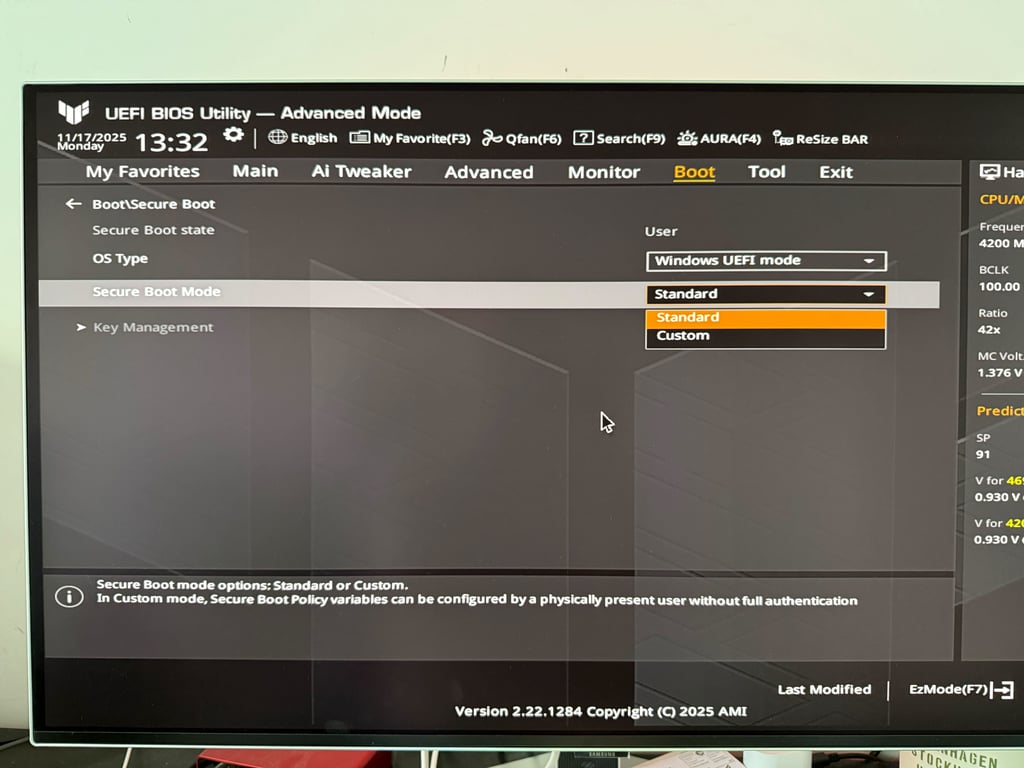
If it asks for a mode, choose Standard or Factory Keys (don’t pick “Custom” unless you know why).
If your BIOS says Secure Boot can’t be enabled, it’s probably because your system is running in “Legacy” mode or your drive is using MBR format. You’ll need to convert the drive to GPT (Windows has a built-in tool called mbr2gpt.exe, just search for Microsoft’s guide). Then, disable “CSM” or “Legacy Boot” and switch to “UEFI.”
Once that’s done, you’ll be able to turn Secure Boot on.
Other required settings on the horizon
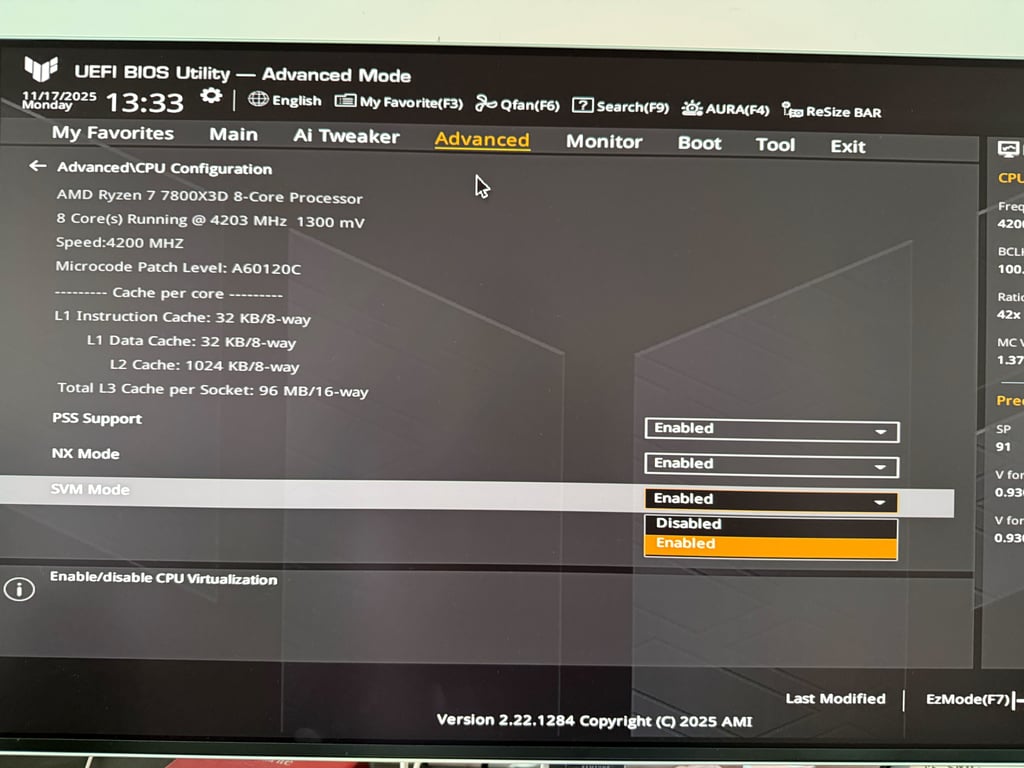
Alongside Secure Boot and TPM 2.0, FACEIT’s anti-cheat system will also presumably require the use of two other hardware-level security features in the near feature. IOMMU and Virtualization (SVM) are already required for players above 3000 Elo. IOMMU is a feature that controls how hardware devices like your GPU, network card, or storage controller can access memory. It makes sure devices can only access the parts of memory they’re supposed to, which in theory makes it hard for hardware cheats to function properly. This includes (and is directly targeted at) DMA cheats. Virtualization is included here because it helps FACEIT verify that you’re running the game within a real, bare metal machine and not a virtual machine.
For more information on what’s required to play FACEIT, see their blog post here. For FACEIT’s own instructions on enabling Secure Boot and other security settings, see their support page here.
Recommended Posts
 simba
simbaCS2 Economy Crash Course: What are Kill Rewards and Loss Bonus?
 simba
simba


