
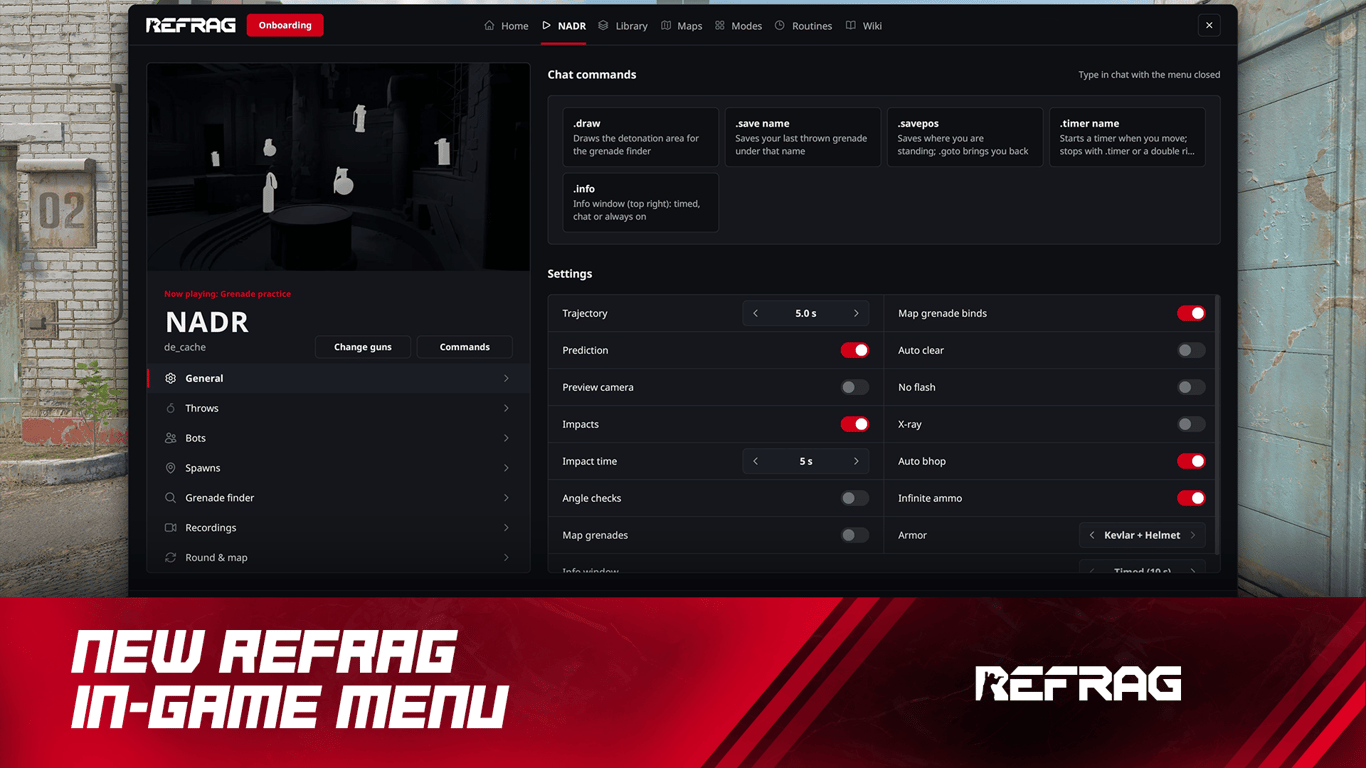
Thanks in large part to Valve’s recent changes in how Workshop content can be delivered in Counter-Strike 2, we’ve been able to develop an even better way to experience what Refrag has to offer. Refrag’s new in-game menu is available now in beta.
The goal of the in-game menu is to give you an easier way to control your Refrag experience without relying on chat commands. You can still use those same commands, but the in-game UI is a much more user-friendly way to switch modes, maps, and tweak your training session.
How to open the new in-game menu
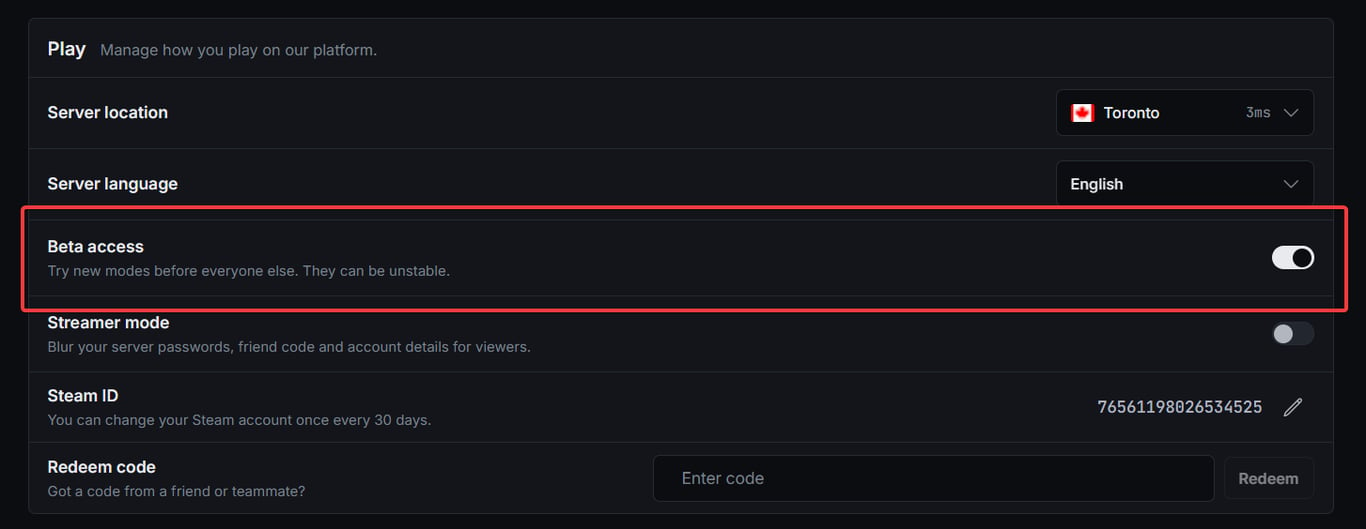
The new in-game Refrag menu is currently only available for beta testers. To enroll in the beta, toggle it on in your account settings under Play. Then, when you start a server, be sure to toggle on the beta before doing so.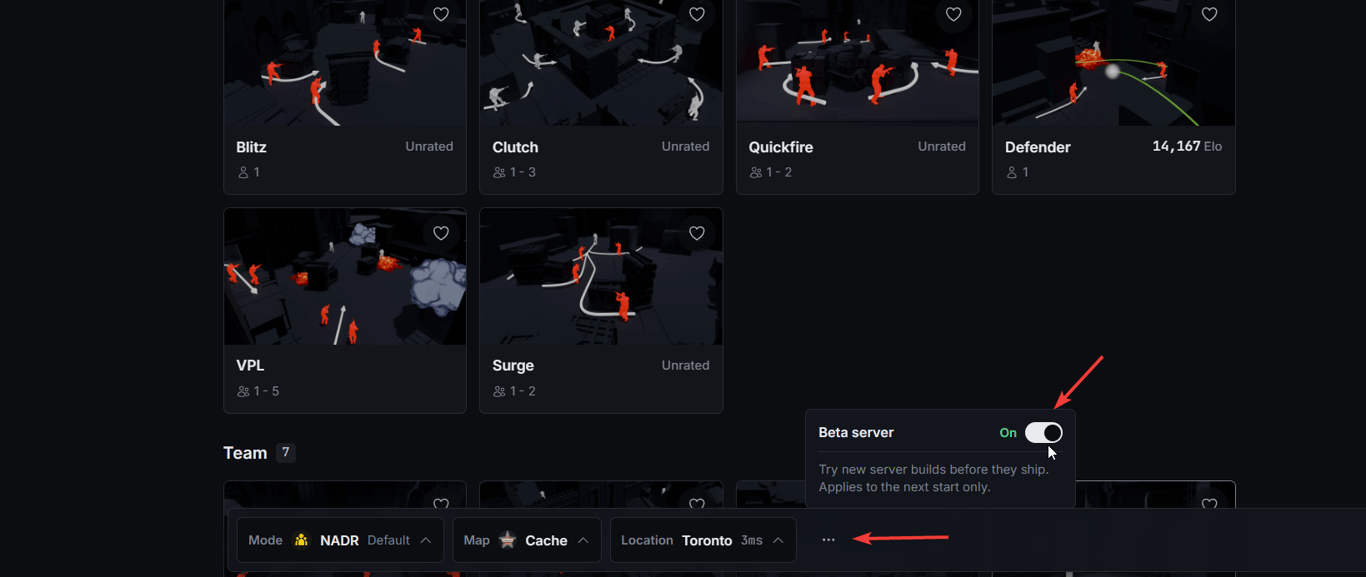
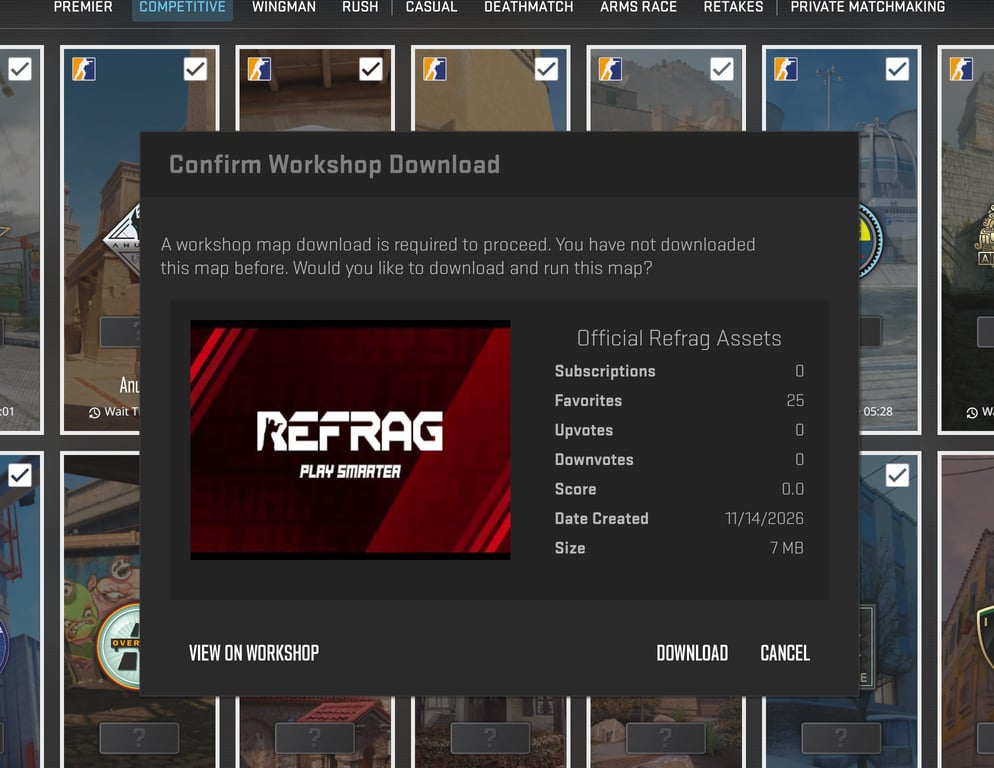
When joining your beta server, your game will prompt you to accept a Workshop download for “Official Refrag Assets”. This is completely normal, and this is what enables the menu to work properly. You only need to download this once; each subsequent time you join, the workshop files will be automatically updated.
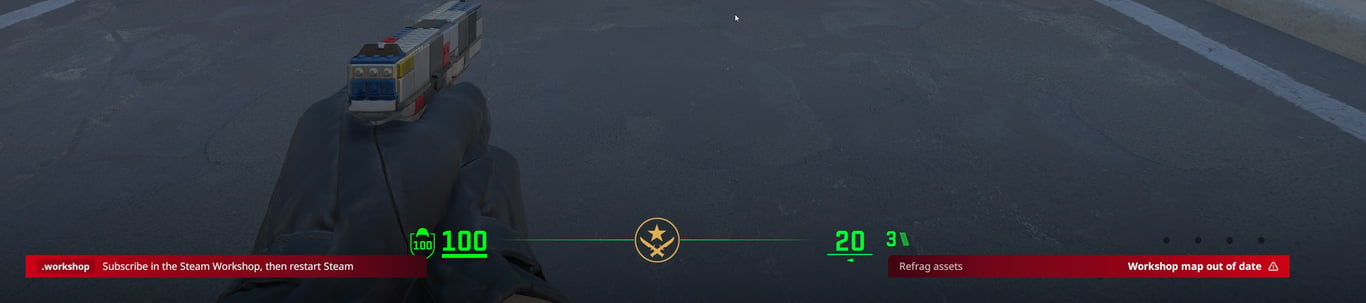
If they’re out of date, the server will tell you after you join, and restarting Steam should force them to update.
Using the Refrag in-game menu
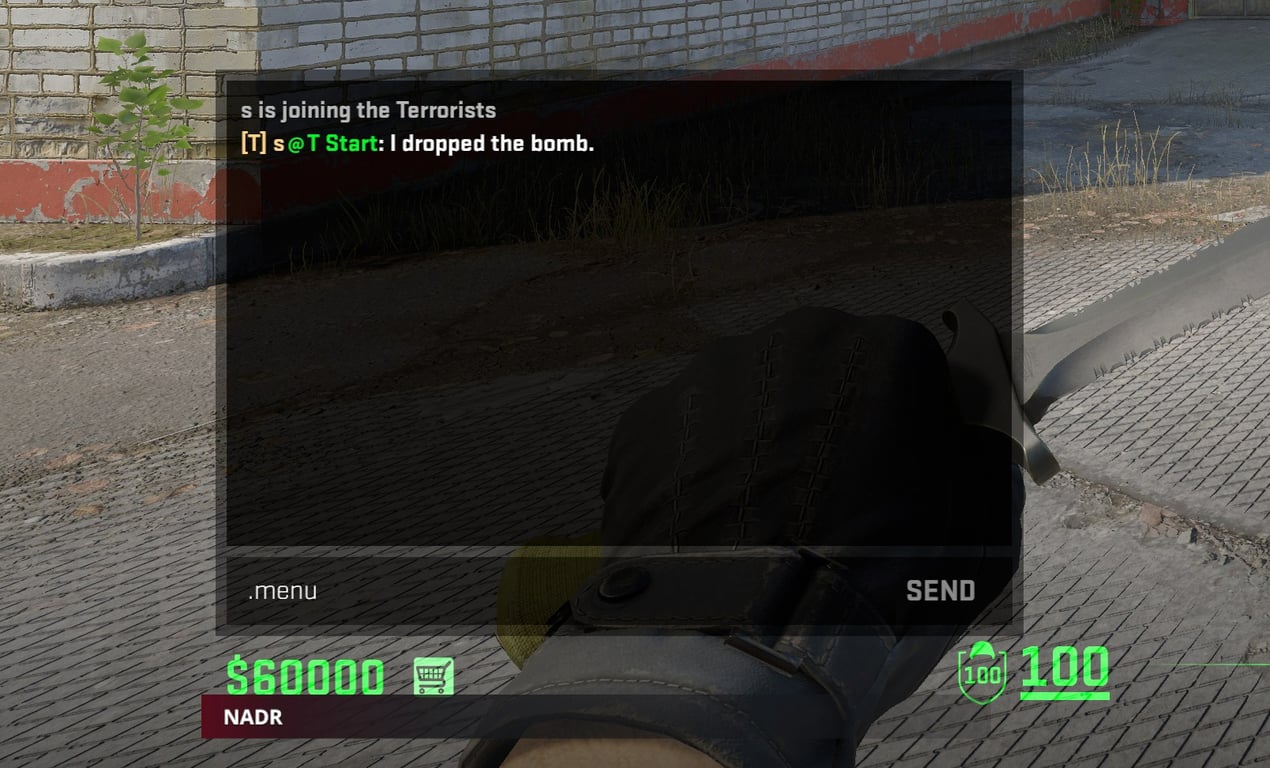
Once in game, simply type .menu to open it. You can also bind this to any key by typing bind [KEY] .menu in the console. Closing it is done using Ctrl, or whichever key is bound to Crouch.
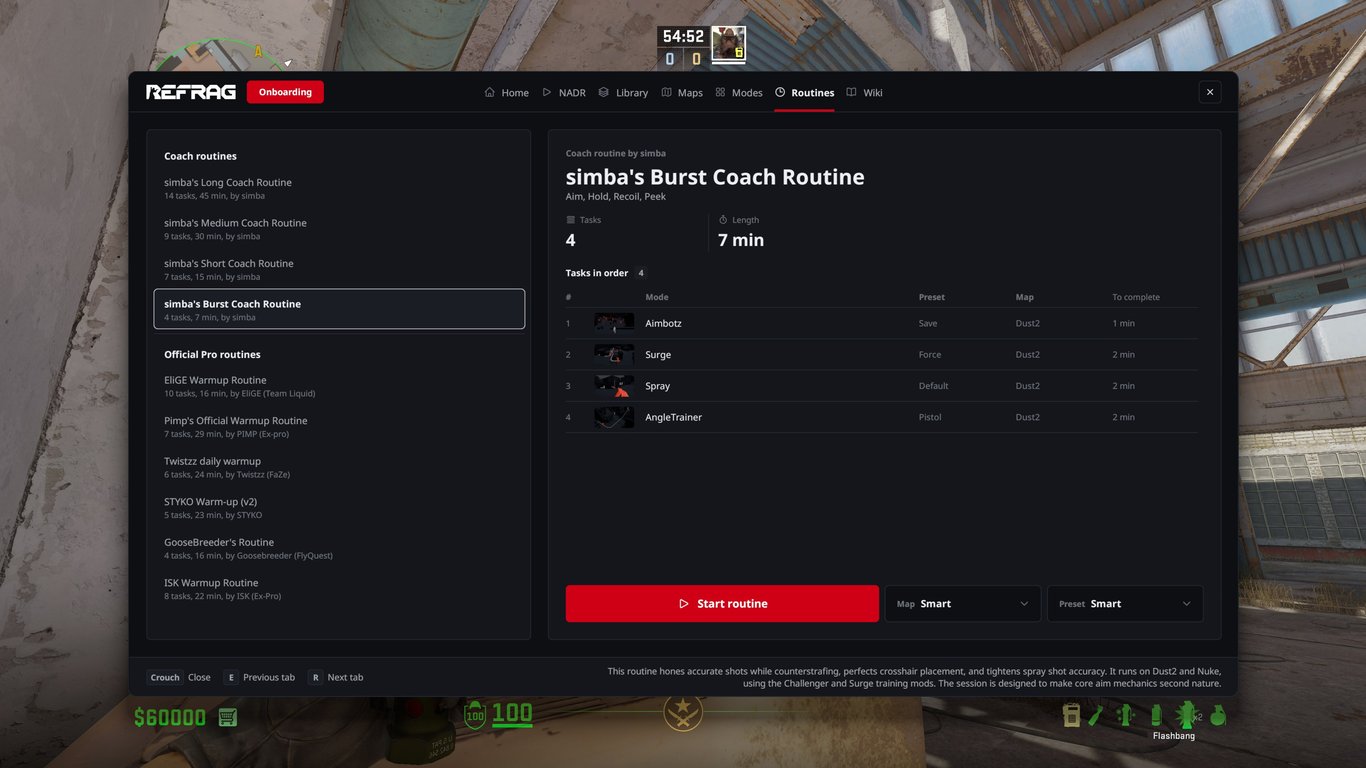
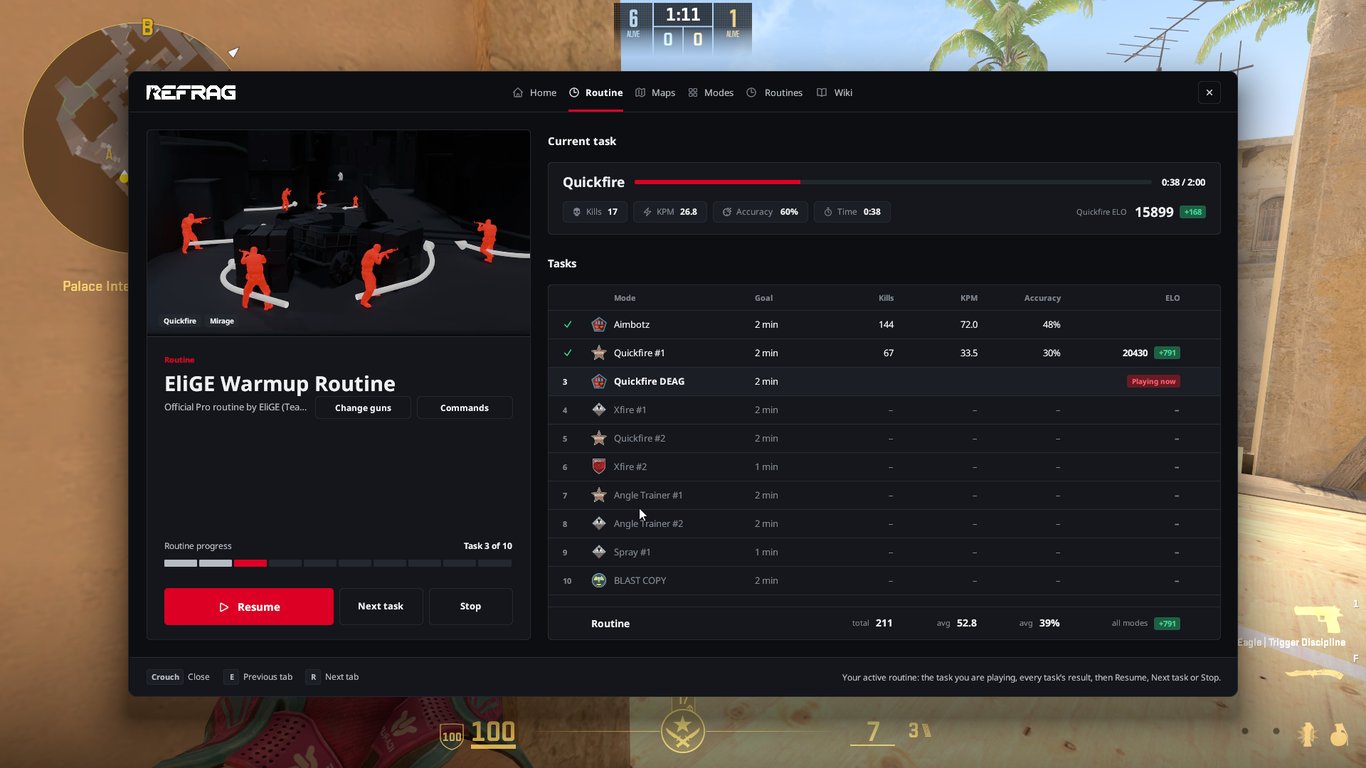
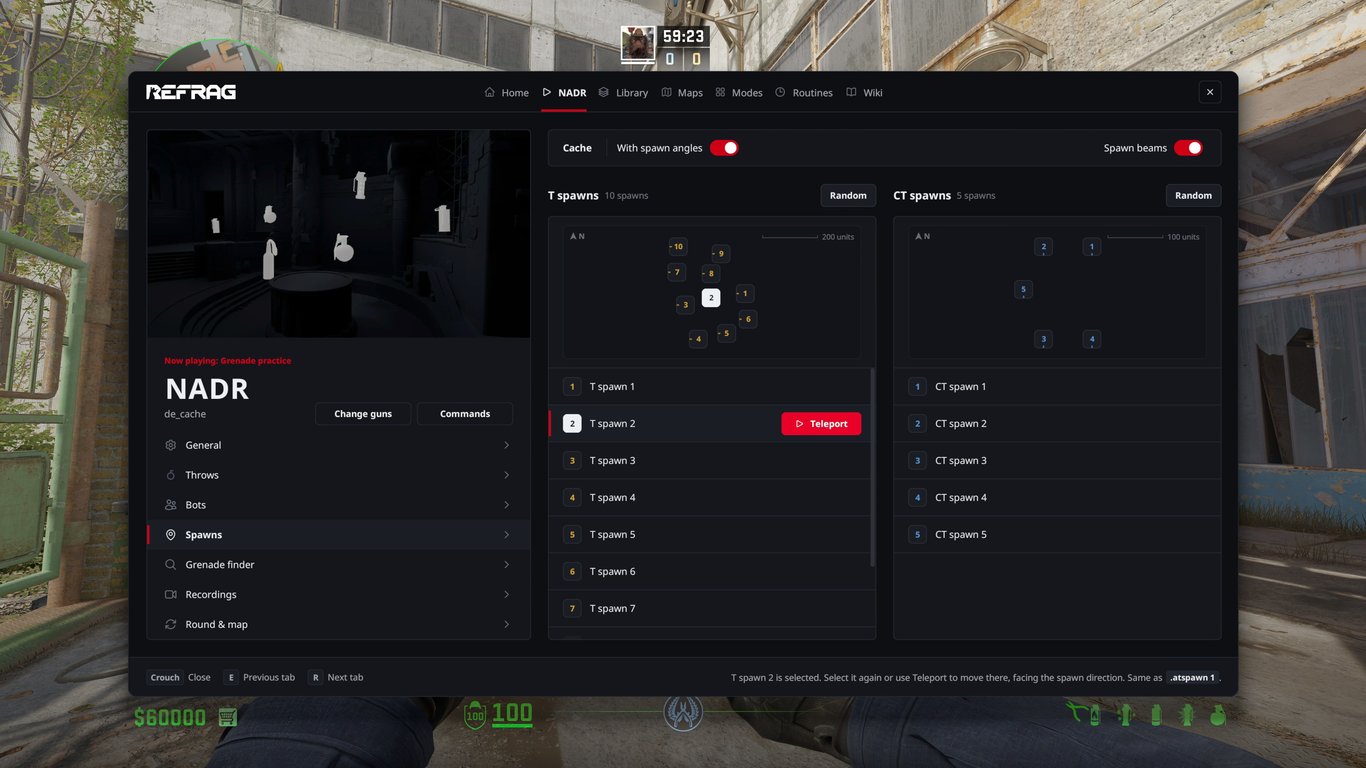
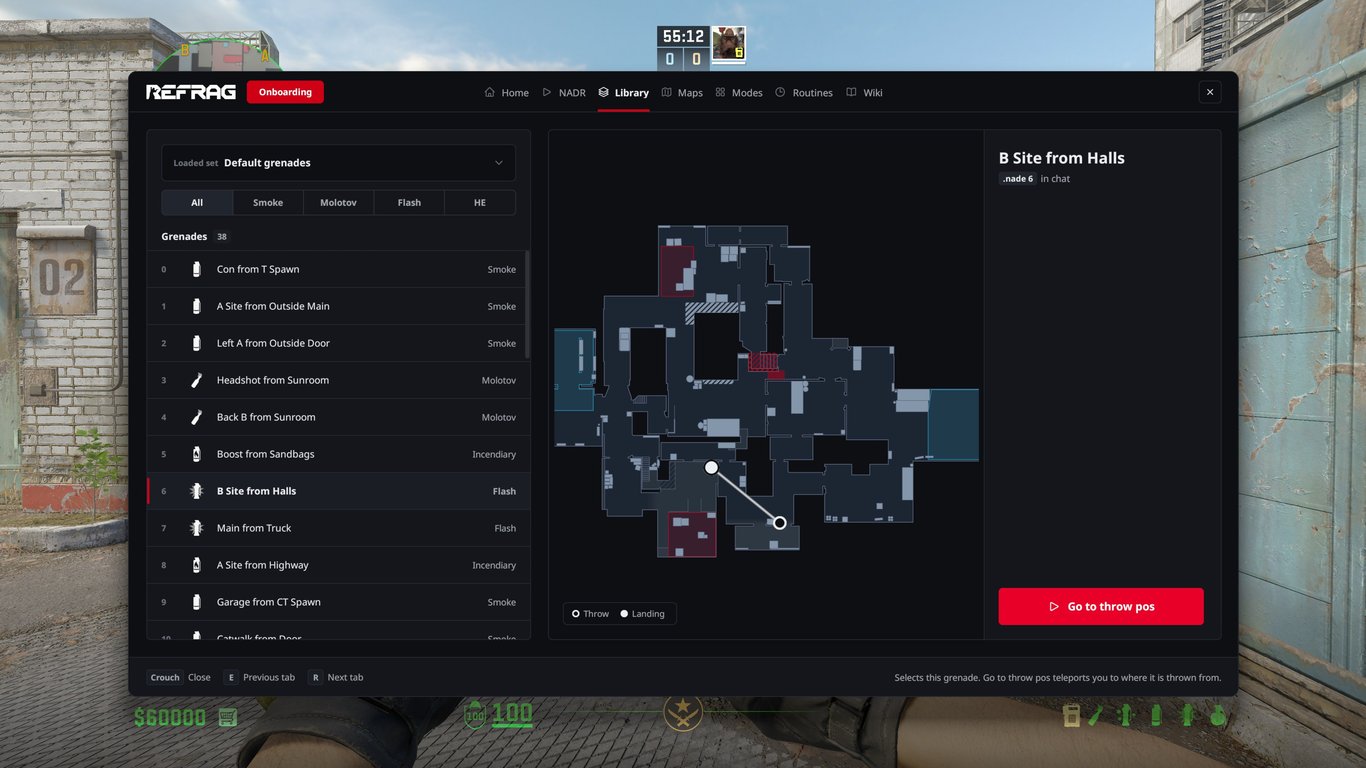
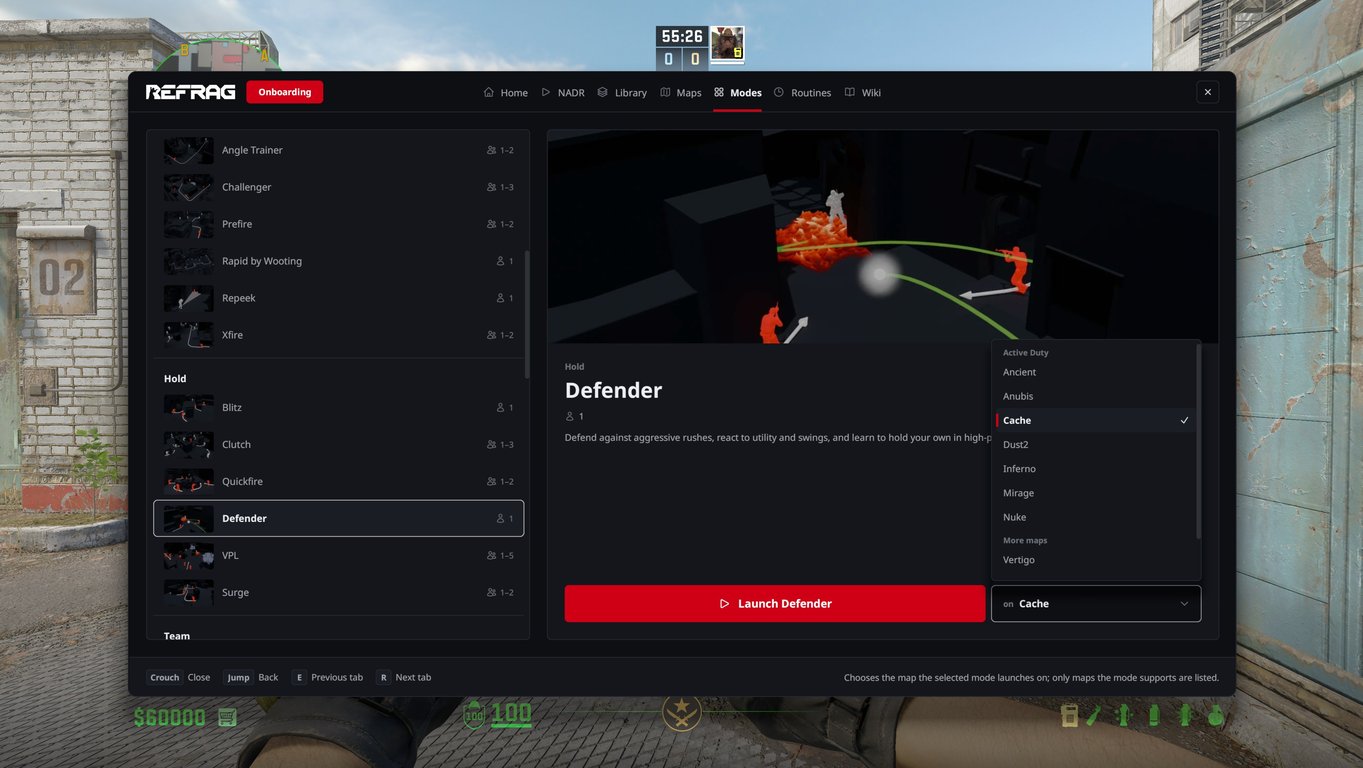
Switching tabs can be done using E and R or by clicking them with your cursor. These tabs allow you to change the settings for your current mode or swap to a different mode, browse grenades, start routines, check Wiki pages, and more.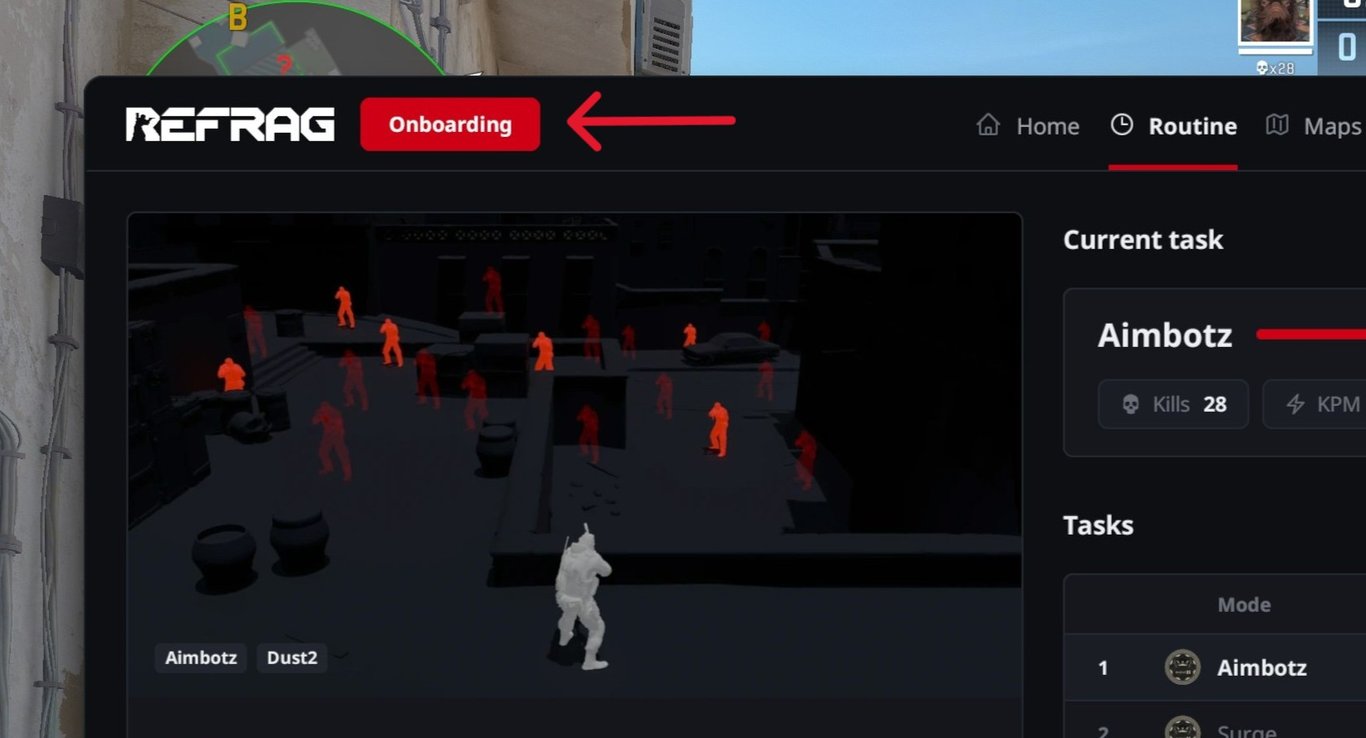
For a quick crash-course on what the menu is capable of, it’s highly recommended you perform the Onboarding, which can be done by clicking the corresponding button in the top left of the menu.
Screenshots
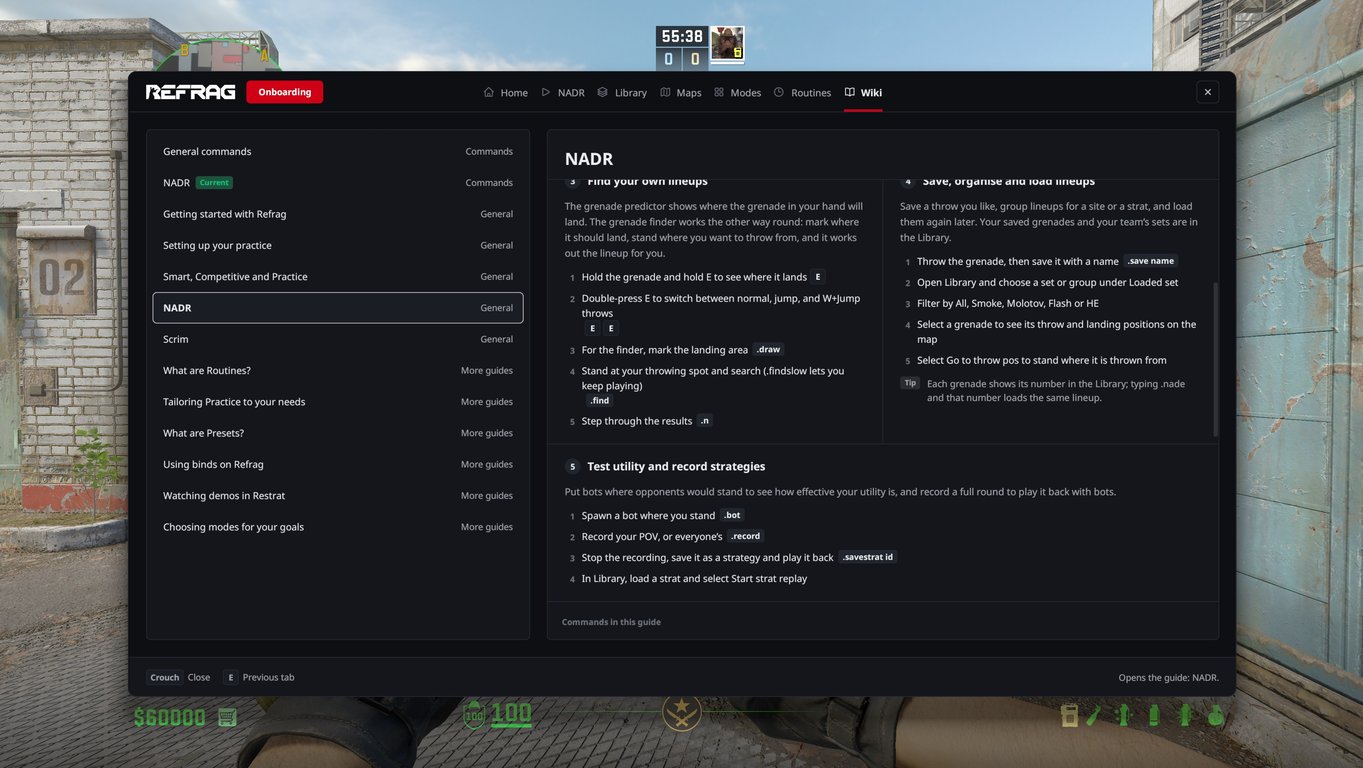
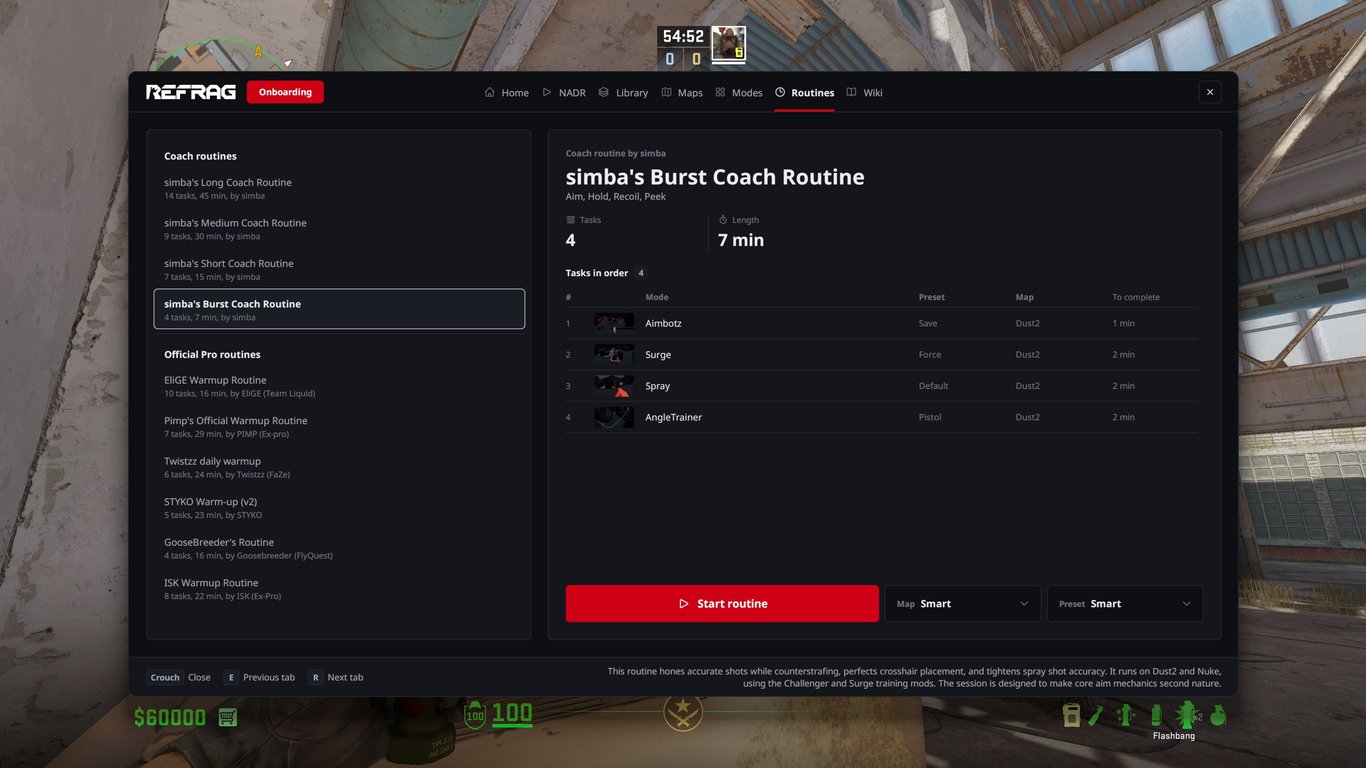
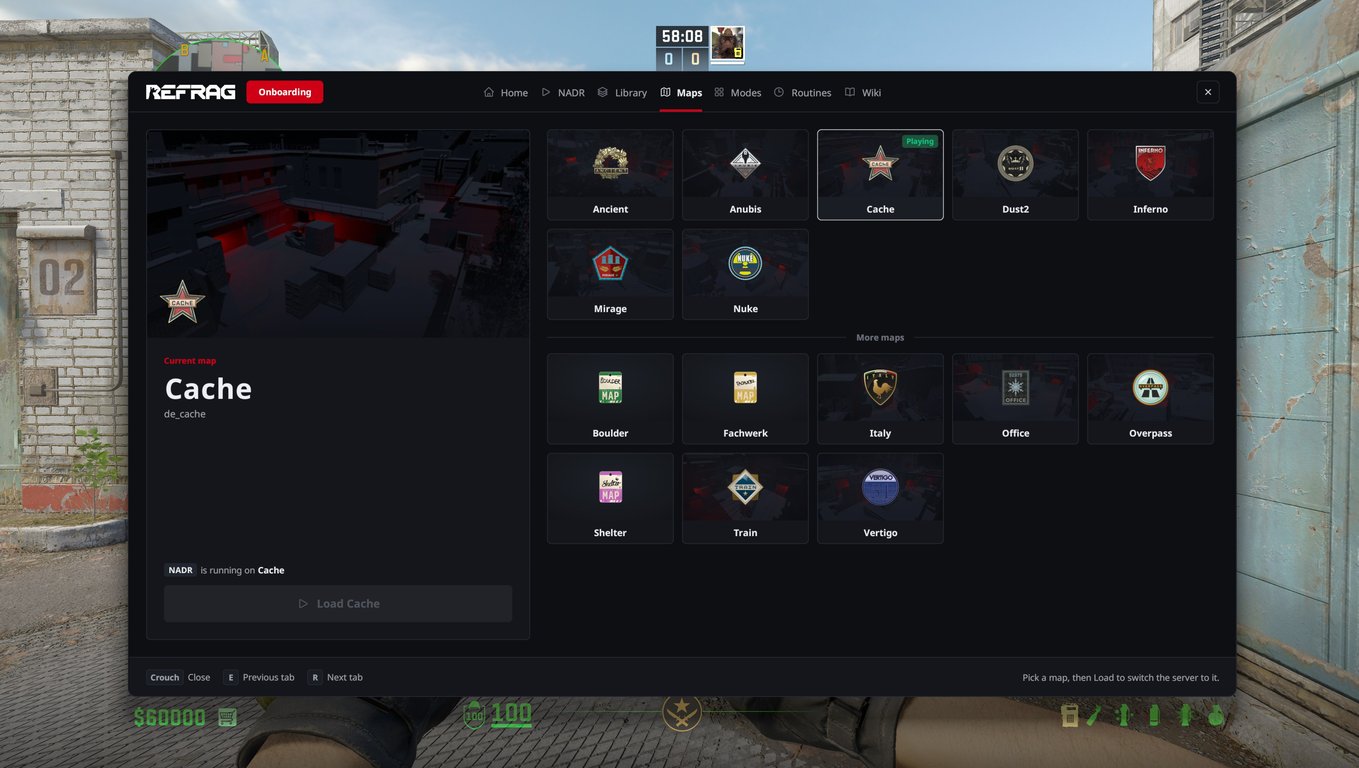
Refrag In-Game Menu Beta FAQ
How do I open the Refrag in-game menu?
Type .menu in chat while you’re on any Refrag server. You can also bind it to a key with bind x .menu in the developer console, replacing x with whatever key you want.
How do I close the in-game menu?
Press crouch, which is Left Ctrl by default. Esc doesn’t close the menu. If you’ve moved crouch to another key, that key closes it.
Why is CS2 asking me to download a workshop map?
The menu and the new HUD load from a workshop item called Official Refrag Assets. The first time you connect, CS2 asks you to download it. It’s about 7 MB, and once it’s downloaded you join the server as normal. You’re not downloading a map, just the HUD assets and code required to make it work with your dedicated server.
What does “Workshop map out of date” mean?
Your copy of the Refrag assets needs updating. Type .workshop in chat, subscribe to the assets in the Steam Workshop, and restart Steam.
Do chat commands still work?
Yes. Every chat command you already use still works. The menu is an extra way to get to the same features.
Can I start routines from the in-game menu?
Yes. Open the Routines tab, pick a Coach Routine or an Official Pro Routine, and hit Start routine. You can change the map and preset before you start.
Can I change modes and maps without leaving the game?
Yes. The Modes tab switches your training mode. The Maps tab lets you pick a map and load it, and your server switches over.
I think I found a bug/have a suggestion!
Tell us! Join our Discord and throw the feedback in our beta feedback thread!
 Refrag
